

Local Evaluation
Run the full Shipfox stack on your machine with Docker Compose to explore the API, dashboard, PostgreSQL, Temporal, Gitea, and object storage.
Evaluation mode runs the full Shipfox stack locally with Docker Compose. It includes the API, dashboard, PostgreSQL, Temporal, Gitea, and object storage for local exploration without a cloud account. For a production deployment, see Self-Hosting.
Prepare your machine for local Shipfox evaluation
Make sure the following are installed and available on your PATH before continuing:
Clone the Shipfox repository to your local machine:
git clone https://github.com/ShipfoxHQ/shipfox.git
cd shipfox
Install the Shipfox development dependencies
Install runtime tooling with mise and then install Node dependencies with pnpm:
mise install && pnpm installmise installs the exact Node, pnpm, and turbo versions pinned in mise.toml (run mise trust if prompted). If you don't use mise, install Node, pnpm, and turbo yourself at the versions listed in that file.
Build the Shipfox API and dashboard packages
Build the packages the API and dashboard depend on. Run these two commands in order:
turbo build --filter=@shipfox/vite
turbo build --filter=@shipfox/api...
The first command builds shared UI primitives. The second builds everything the API transitively depends on. Both are incremental, so running them again after a code change only rebuilds what changed.
Start the Shipfox infrastructure services
Bring up the Docker Compose stack:
docker compose up -dThis starts the following services in the background:
| Service | Purpose |
|---|---|
| PostgreSQL | Primary database for Shipfox state |
| Temporal | Workflow orchestration engine used internally by Shipfox |
| Gitea | Local Git hosting (simulates GitHub for local push triggers) |
| Object storage (garage) | S3-compatible storage for step-log artifacts |
A demo repository shipfox/demo is seeded automatically. You can connect this repository to a project for your first run without needing a real GitHub repo.
The stack binds fixed host ports: 5432 (PostgreSQL), 7233 (Temporal), 3000
(Gitea HTTP), 2222 (Gitea SSH), and 3900 (object storage S3). If
docker compose up fails with "port is already allocated", override the
conflicting port with the matching variable: SHIPFOX_POSTGRES_PORT,
SHIPFOX_TEMPORAL_PORT, SHIPFOX_GITEA_HTTP_PORT, SHIPFOX_GITEA_SSH_PORT,
or SHIPFOX_GARAGE_S3_PORT. Then run the command again.
Start the Shipfox API and dashboard
Open two terminal windows and start the API and dashboard processes:
# Terminal 1: API on port 16101
pnpm --filter=@shipfox/api dev

# Terminal 2: Dashboard on port 5173
pnpm --filter=@shipfox/client dev
Wait until both processes are ready before proceeding. The API prints Server listening at http://127.0.0.1:16101, and the dashboard prints VITE ready. The dashboard is available at http://localhost:5173 and the API at http://localhost:16101.
Create a local Shipfox account and workspace
Open http://localhost:5173 and sign up with any name, email, and password.
Signup asks you to verify your email. In evaluation mode there is no mail
server. The API prints every email to its terminal. Find the line containing
Verify your email in the API logs and open the verification link it
contains.
After verification, the dashboard walks you through setup:
- Create your workspace: pick any name.
- Install source control: choose Gitea and enter the organization
shipfox(the org seeded by Docker Compose). - Configure agent provider: skip this unless you want to run agent steps immediately.
- Create project: pick a seeded repository such as
shipfox/demo. The project name is pre-filled from the repository.
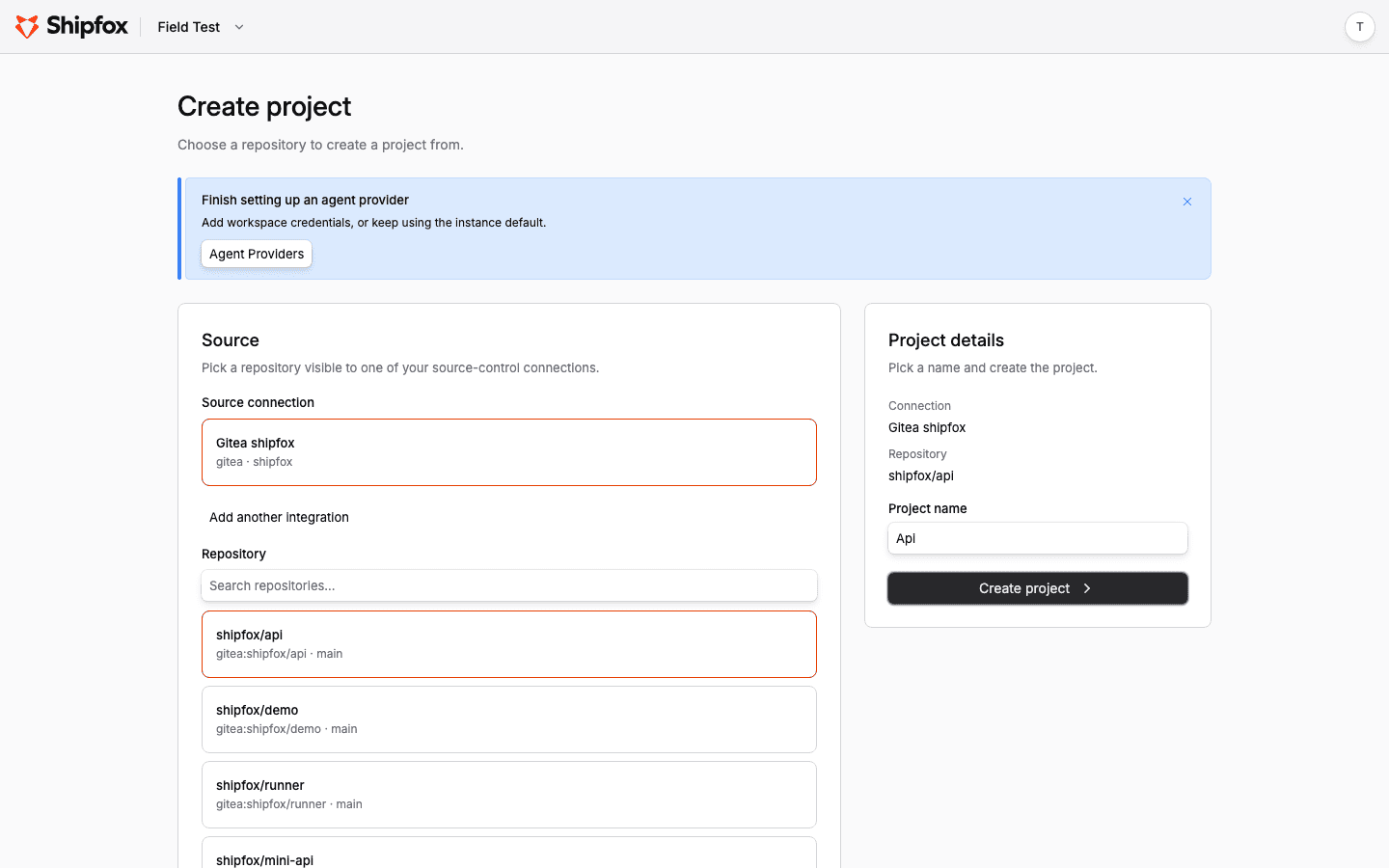
Create project: pick the source integration connection and repository. The name is pre-filled.
Register a local Shipfox runner
A runner is required to execute jobs. Follow these steps to register one:
- Go to Settings → Runners and click Create token. Name the token, pick an expiry, and copy the token. It is shown only once.
- Start a runner in a third terminal, passing your token and labels as environment variables:
SHIPFOX_API_URL=http://localhost:16101 \
SHIPFOX_RUNNER_REGISTRATION_TOKEN=<YOUR_REGISTRATION_TOKEN> \
SHIPFOX_RUNNER_LABELS=shipfox,node-22 \
pnpm --filter=@shipfox/runner dev
The runner reads SHIPFOX_API_URL, SHIPFOX_RUNNER_REGISTRATION_TOKEN, and SHIPFOX_RUNNER_LABELS from its environment. Within a few seconds, its terminal prints Runner session registered and starts polling for jobs. The dashboard does not list connected runners yet, so use the runner log to confirm that it is connected.
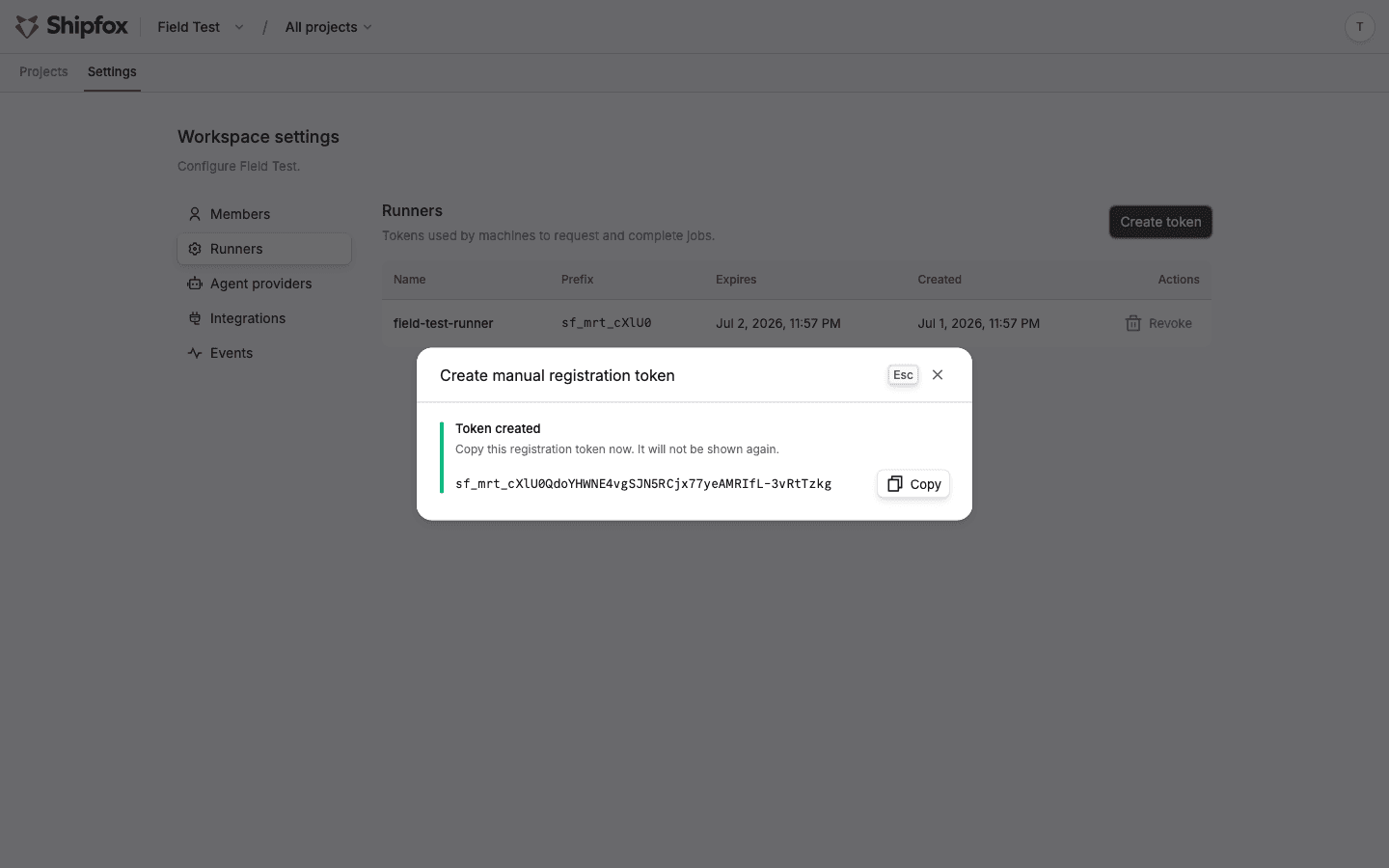
Creating a registration token. The value is shown once, with a copy button.
A runner exits after a default idle window (about 5 minutes). To keep it polling indefinitely during evaluation, add SHIPFOX_POLL_MAX_DURATION_MS=0 to its environment.
Create and fire your first Shipfox workflow
Create a workflow file in the shipfox/demo repository that uses a manual
trigger. This is a complete workflow:
# yaml-language-server: $schema=https://www.shipfox.io/docs/workflow.schema.json
name: First run
runner: shipfox
triggers:
  on_demand:
    source: manual
jobs:
  hello:
    steps:
      - run: echo "Shipfox is running!"
Clone the seeded repo from the local Gitea, add the file, and push. The seeded admin account is gitea-admin / gitea-admin-dev-password, and the Gitea web UI is at http://localhost:3000:
git clone http://gitea-admin:gitea-admin-dev-password@localhost:3000/shipfox/demo.gitShipfox picks the workflow up within seconds. Open the project's Workflows page and click Run next to the workflow. Watch the logs stream live in the run detail view.
Verify the evaluation stack
Confirm that First run succeeds, its command prints Shipfox is running!,
and the runner log shows that it claimed and completed the job. These checks
prove that workflow sync, manual routing, runner registration, checkout, and log
delivery work together.
In evaluation mode, GitHub push triggers do not fire by default because
the local API is not reachable from GitHub's webhook infrastructure.
Gitea push triggers do fire: the compose stack registers a webhook from
the seeded shipfox org to your local API. Add this trigger fragment under
the complete workflow's triggers map:
triggers:
  on_push:
    source: gitea_shipfox   # <provider>_<organization>
    event: push
Then git push to the connected repository and watch the run start.
Gitea is the evaluation stack's local stand-in for GitHub. It exists only in this Docker Compose setup. Deployed installations (self-hosted or cloud) connect GitHub: GitLab support is on the roadmap.
Agent steps use model-provider credentials stored in workspace settings. Do not put provider API keys in the runner environment. Follow Configure an agent harness and model provider before running an agent step.